How to Add a Cell Phone Verification Method for dlrSecured Identity Management
An employee may choose to add a
-
When signing on using dlrSecured, select the Update Verification Data After Login check box on the Enter Your Email User ID screen, the Enter Your Password screen, or the Enter Your Verification Code screen.
1 -
Continue the sign-on process, as normal.
Once sign-on credentials have been verified, the Add/Change Verification Methods screen displays.
2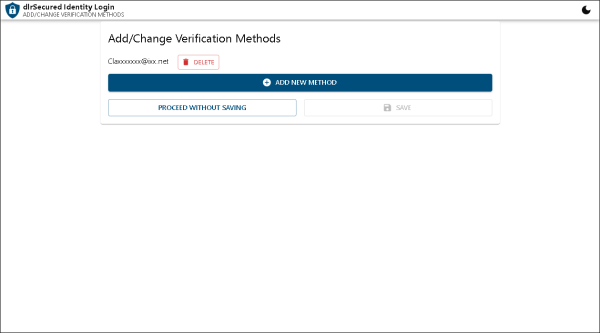
-
Click the Add New Method button.
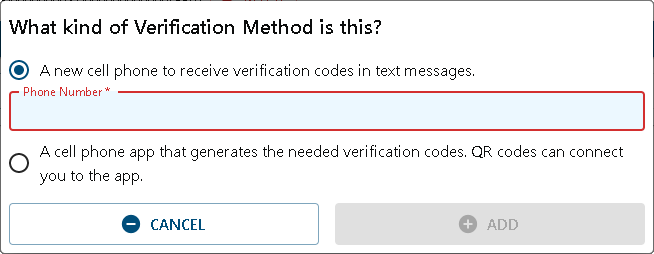
The What Kind of Verification Method Is This? window displays.
3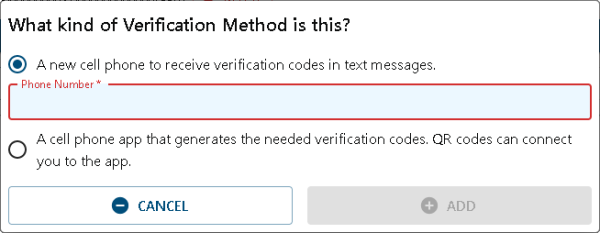
-
Note - If employees are not required to confirm verification methods, click the Add button and proceed to step
4 -
Click the Next button.
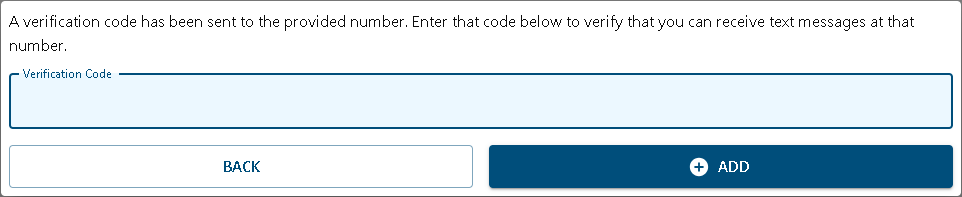
The Verification Code window displays.
5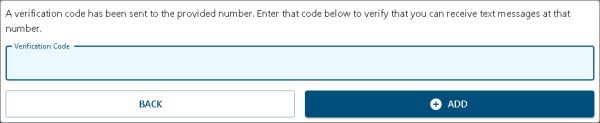
-
Enter
6 -
Click the Add button.
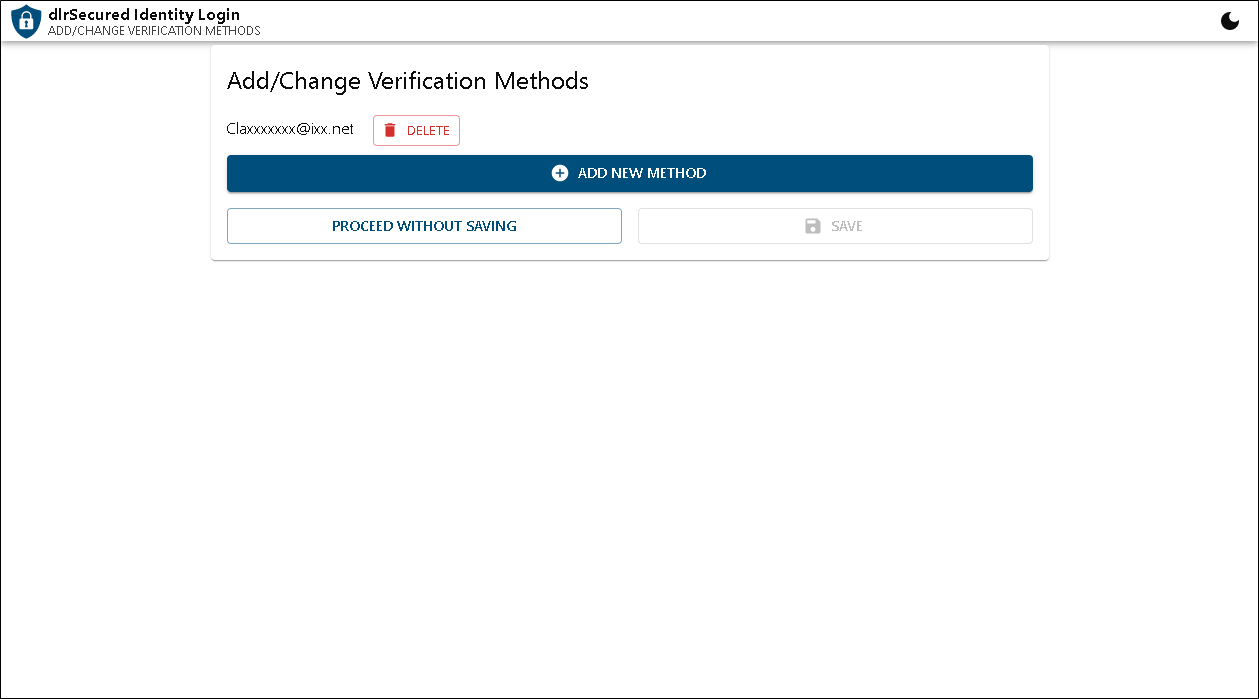
The Verification Code window closes, and the new verification method displays on the Add/Change Verification Methods screen.
7 -
Click the Save and Proceed button.
The verification method is saved, and the sign-on process is complete.
8
Click here for a list of products that may be mentioned in this help file.